Basics
Login
It is possible to log in to the AUSEMIO platform using a web browser from a computer or mobile device. Entering the URL into the browser will take you to the AUSEMIO platform website.
Browsers
Fully supported browsers are ** Firefox ** and ** Chrome **.
The URL is different for each installation and is supplied with other AUSEMIO materials. An example is a URL https://vasafirma.ausem.io/
What does the login screen look like
The home page of the system consists of several parts.
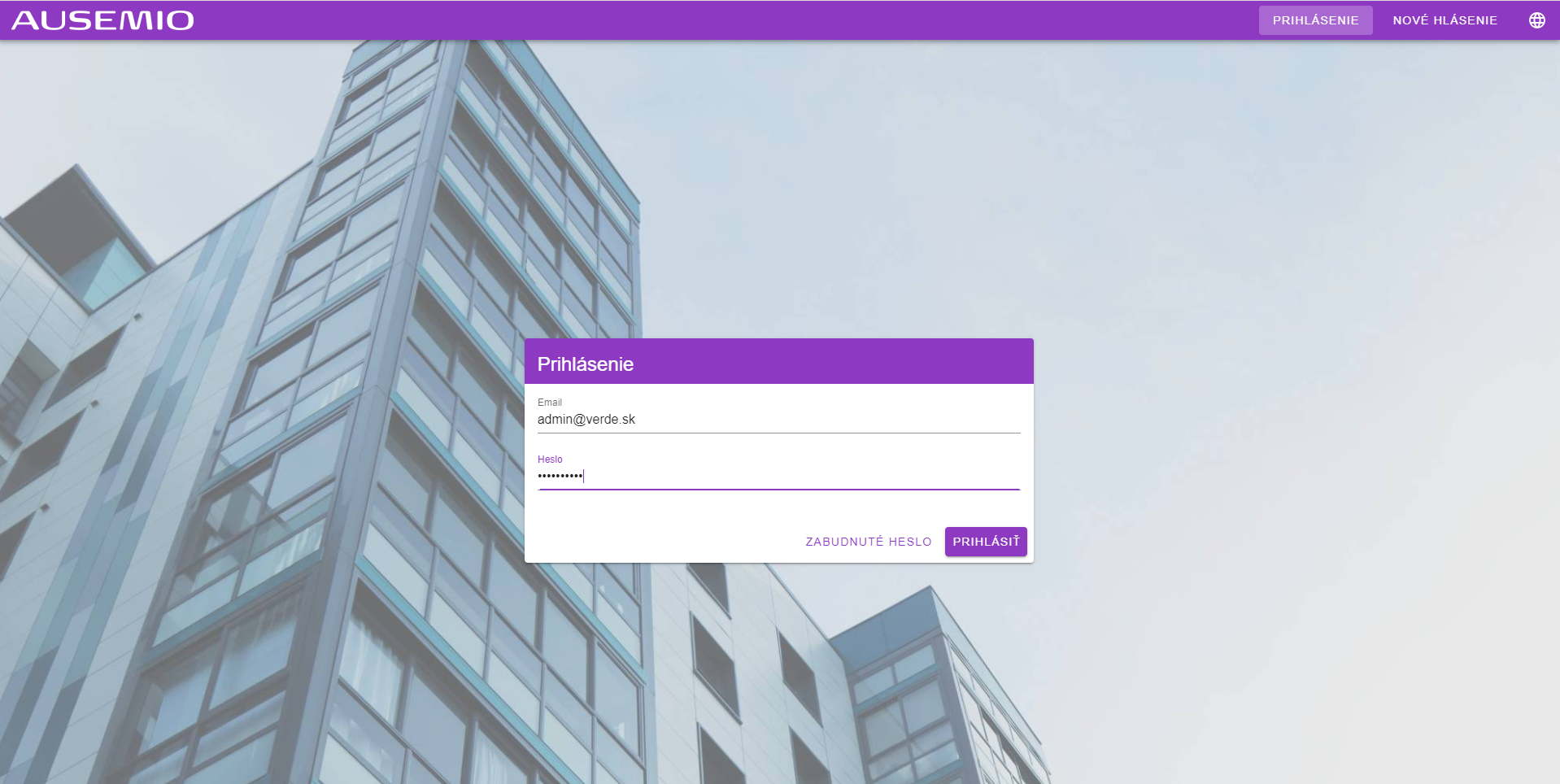 ** 1. Application form
* Email - login email to the platform.
* Password** - login password assigned to the email above.
** 1. Application form
* Email - login email to the platform.
* Password** - login password assigned to the email above.
After filling in both fields and then clicking the ** Log in ** button, the system will verify the correctness of the data. If the data was entered correctly, the system will log you in and display the home page.
- Forgotten password - by clicking here the user is redirected to the password reset process if he does not remember it.
2. Create a report
The report can also be created by a person who is not a user of the AUSEMIO platform. How to do it is described in the section [public announcement] (# public-announcement).
3. Language
If necessary, you can change the language by clicking on the icon at the top of the form. English and Slovak are currently available.
Warning
Your browser may display a menu to remember your login information. Before you decide to save this data in the browser, consult the person responsible for information technology, resp. In the security of its storage on your device (computer, mobile, tablet). IT security.
Logout
The logged in user has the option to log out of AUSEMIO in any part of the platform in which he is located. By clicking on the icon at the top right  the user will be logged out immediately.
Navigation bar
 It is located at the top and is used to search for and partially set up the AUSEMIO platform.
On the left side it is:
It is located at the top and is used to search for and partially set up the AUSEMIO platform.
On the left side it is:
Logo AUSEMIO
Serves as a "home page" button in the browser. Clicking takes the user to the home page. Homepage can be set in user profile.

Name of selected part
The currently selected section in the AUSEMIO platform is displayed on the navigation bar. Eg:


Search box
Used to search for any object in the AUSEMIO platform. The minimum number of characters is 4. When you start writing, instant search is automatically activated.

Notifications
Displays the number of unread notifications. Click on the icon to see the details. More in Notifications.

Documentation
Click on the icon to display the documentation for the AUSEMIO platform. The user will be redirected to the part of the documentation that corresponds to the currently open part of the application. E.g. if it is in the People section of the application and clicks on the documentation icon, it will be redirected to the section of the documentation that explains the People.

Language settings
Switching between English and Slovak. This switch only applies to the current connection. After refreshing the page or logging in again, the language will be set as it was before the change. To set the language permanently, the change must be made in user preferences.

The main menu of the AUSEMIO platform.
The main menu is used for navigation in the AUSEMIO platform. Its content components (modules) differ from the purchased version or set by the administrator. AUSEMIO offers the possibility to set exactly which users are allowed to see and manage specific system parts.
Mobile application of the AUSEMIO platform
- Thanks to the responsive design, the page of both the mobile and the full application is displayed correctly on any modern device.
- The user of the AUSEMIO platform mobile application must give permission on his smartphone to use GPS, camera, storage access (and others, depending on the operation performed).
- The AUSEMIO platform can be used directly in browsers, without the need for installation, or after installing a mobile application:
- Windows 10 - All versions (Windows 10 - April 2018 update) that support Chrome from version 75 and above.
- Android devices that support Chrome version 75 and above.
- IOS devices in Safari 11.1 for iOS 11.3 and MacOS 10.13.4. (Support for PWA technology in browsers
- Safari expands with each new version)
Recommended minimum technical parameters of the equipment
| Workstation | ||
|---|---|---|
| ** Windows OS ** | ||
| Windows 10 - Update April 2018 and later | ||
| Chrome version 75 | ||
| Excel latest version (if the user will use the Reports module) | ||
| 17 "or larger display unit | ||
| MacOS devices | ||
| OS version 10.13.4 and higher | ||
| Safari 11.1 and higher or Chrome from version 75 |
| Mobile devices | ||
|---|---|---|
| Android device | ||
| Screen size 6.5 "or more | ||
| At least 4 GB RAM | ||
| Android 9.0 Pie and above | ||
| Internal memory at least 2G (+ take into account space for photographs) | ||
| GPS module | ||
| WIFI module (recommended LTE connection for field work) | ||
| IOS mobile device | ||
| Supporting iOS 11.3 | ||
| Safari 11.1 and higher or Chrome from version 75 |
When choosing a device, we recommend that you also consider the mechanical resistance of the device with respect to the place of use of the mobile device. It is recommended to consider increased mechanical resistance, water resistance and other parameters that prevent excessive damage to the mobile device.