Planning calendar
The planning calendar in the AUSEMIO system is used for simple administration and planning of service or inspection, whether for regular or reactive service.
Calendar buttons for people
- Calendar Type - Displays the selected type of report view you want, such as Monthly, Weekly, and Daily.
- Colorize - Displays the selected color options that are Default , Report Status, Report Priority.
- Selected hours from 0 to 24 - Set the time range for scheduling.
- Person - Is the selected person (user or service technician) for whom we want to create a work calendar plan.
- Month and year - Button that is used to switch months in the calendar.
- Apply schedule - Applies the selected schedule to the calendar for the selected person.
Scheduling the reporting service
In the system section Maintenance we go to the section Calendar (Persons). We will see the screen as in the picture below.
- On the left side of the screen, there are messages generated by the AUSEMIO system based on the rule or they are reactive messages.
- After selecting all options such as Calendar type, Coloring and Selected hour range, we will also select the person to whom we want to assign reports.
- Then all you have to do is move the cursor to the required message and move it to a specific day or time in the calendar on the right. In this way, we will determine exactly the report of the responsible person and the time when the service is to be performed.
- When we have finished scheduling for the person, select * Apply Schedule * and the schedule, reports and person will be combined.
Warning
If the procedure was not followed and the person was not selected, the drag and drop function to move the message to the calendar will not work.
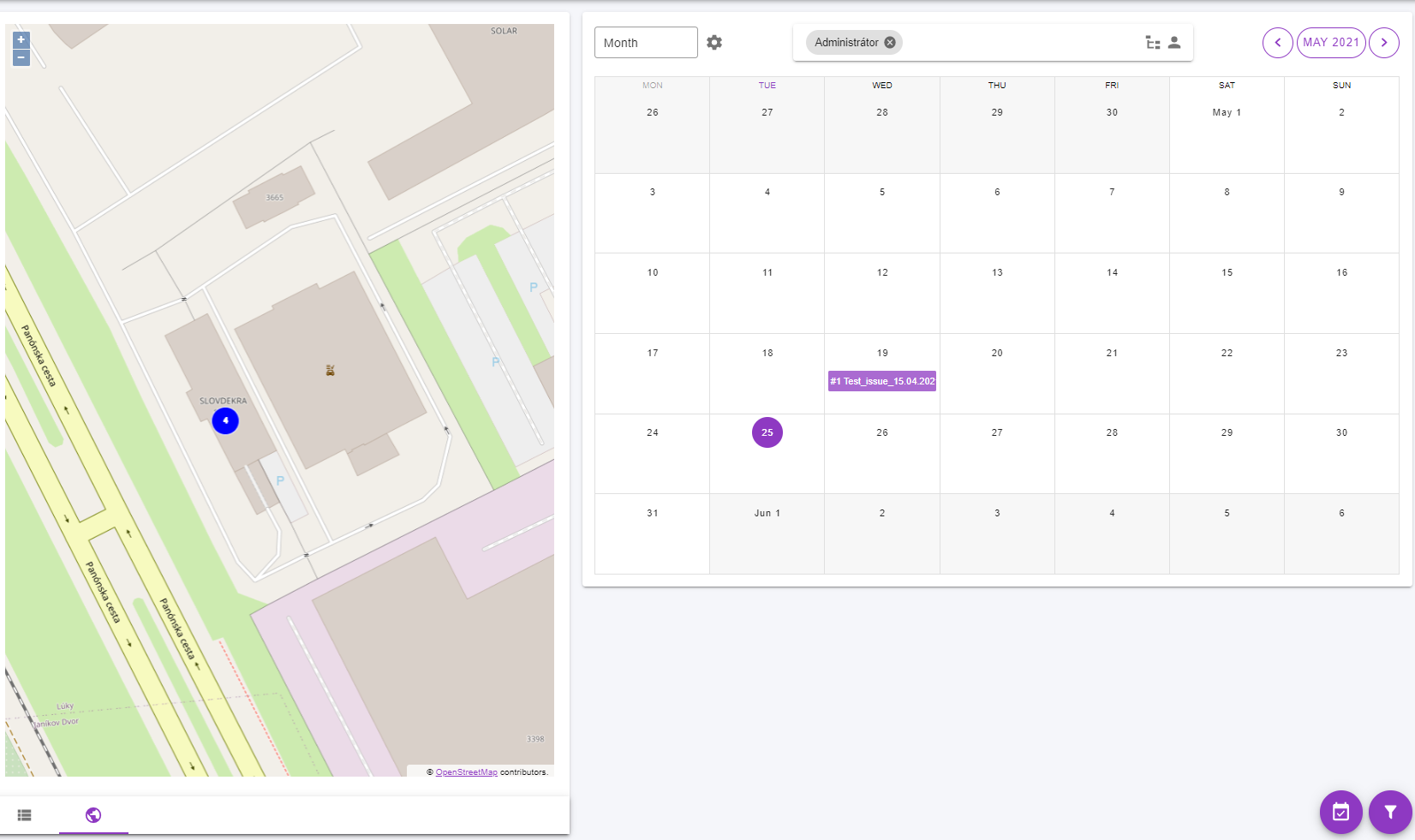
Planning from the map
The AUSEMIO platform also allows planning directly from the map. The condition for planning from the map is that the property has a specific location attached to it, so that we can determine where the report is planned (for example, if we have property linked to Panónska cesta 47, it will not happen to me that I schedule the report to another address)
If we have assets linked to a specific address on the map, dots with a specific number will be displayed, which tells us how many messages are already associated at a specific address:

after clicking, we can see what specific messages are:
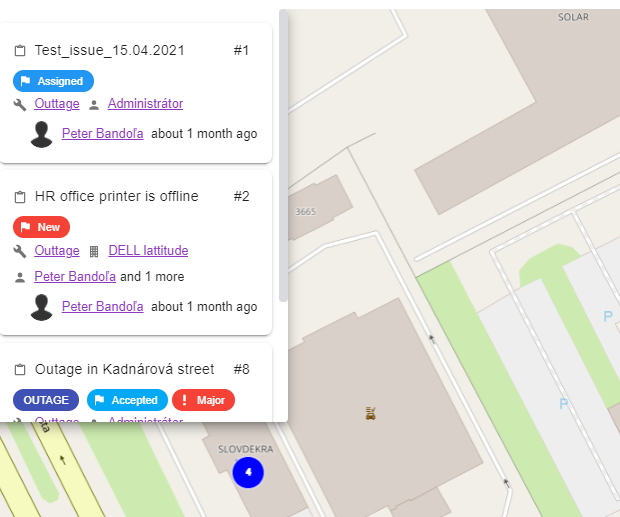
Create a report
As with the planning calendar, it is important to first select the responsible person in the calendar search field:
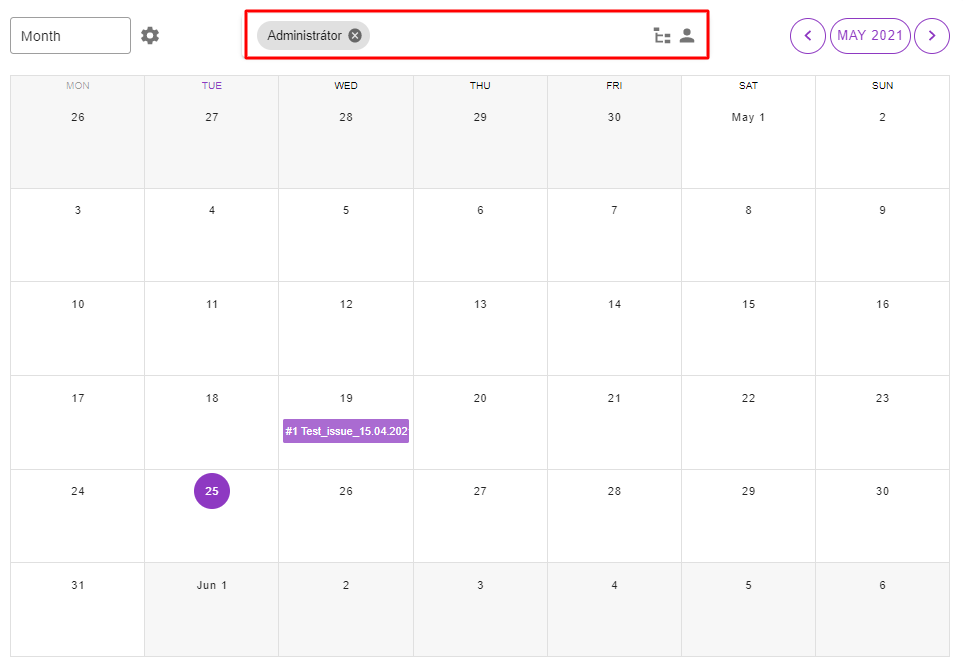
Then we can go to the map and select a specific message and drag and drop the message to a specific day in the calendar. If we move the message, a window will appear where we fill in additional information to complete the planning and click save:
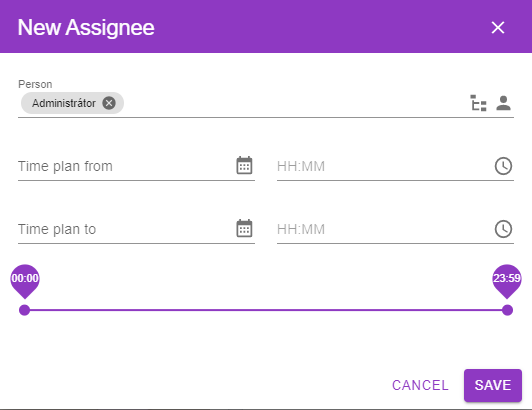
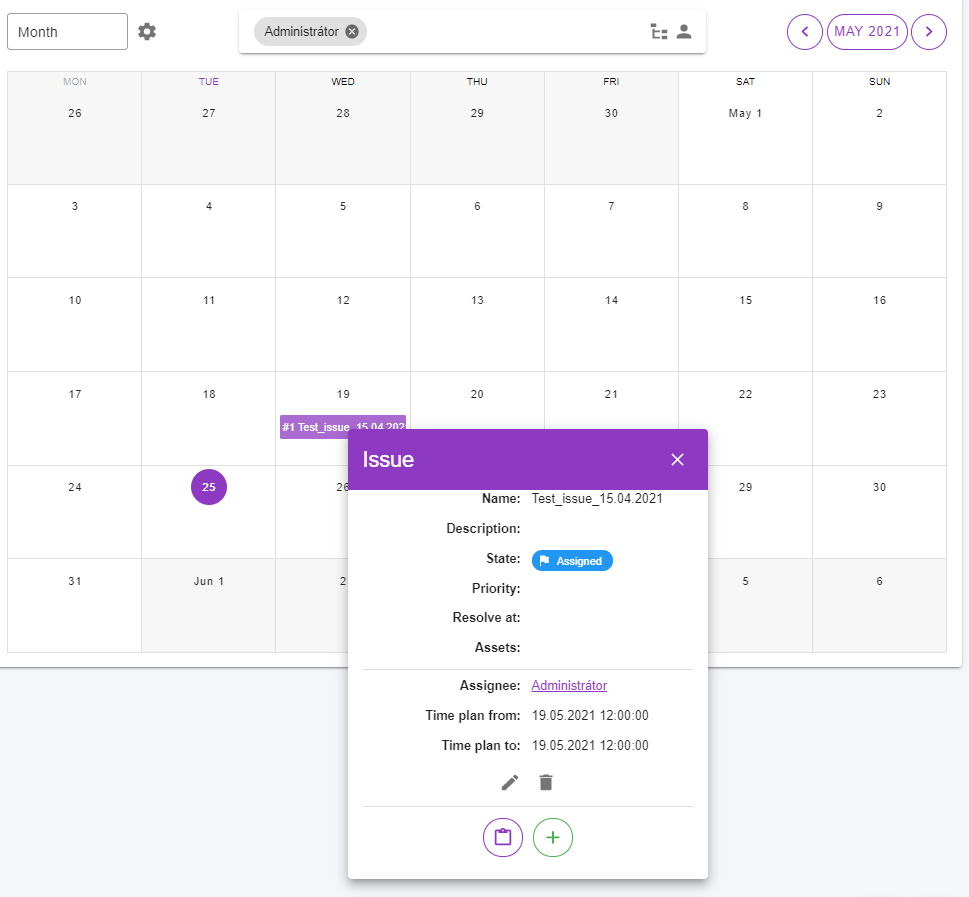
The report created in this way will be displayed in our calendar and its details can be viewed by clicking on the field below the date, or I can edit it by clicking on the + button:
Recommendations for planning from the map
- Make sure the person is selected before moving the message to your calendar
- The message can be modified later